


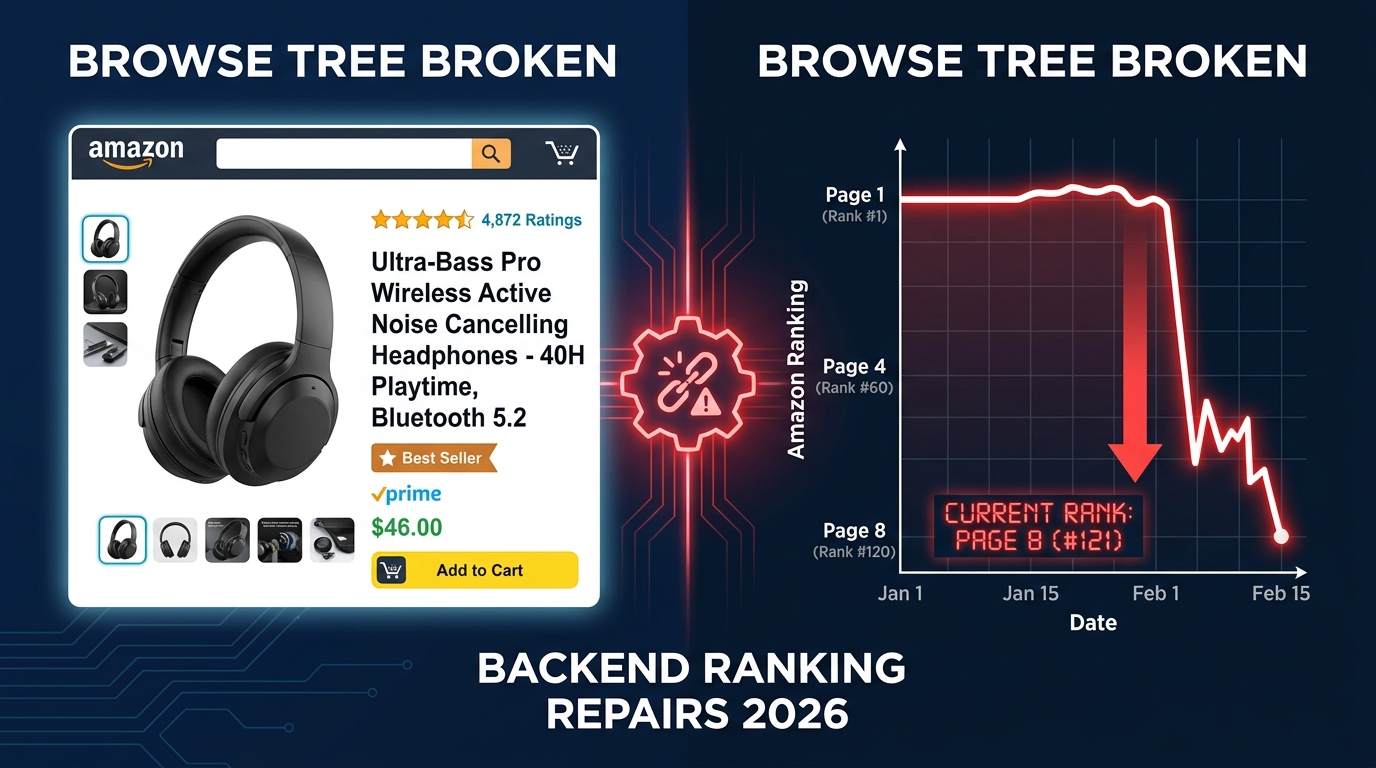

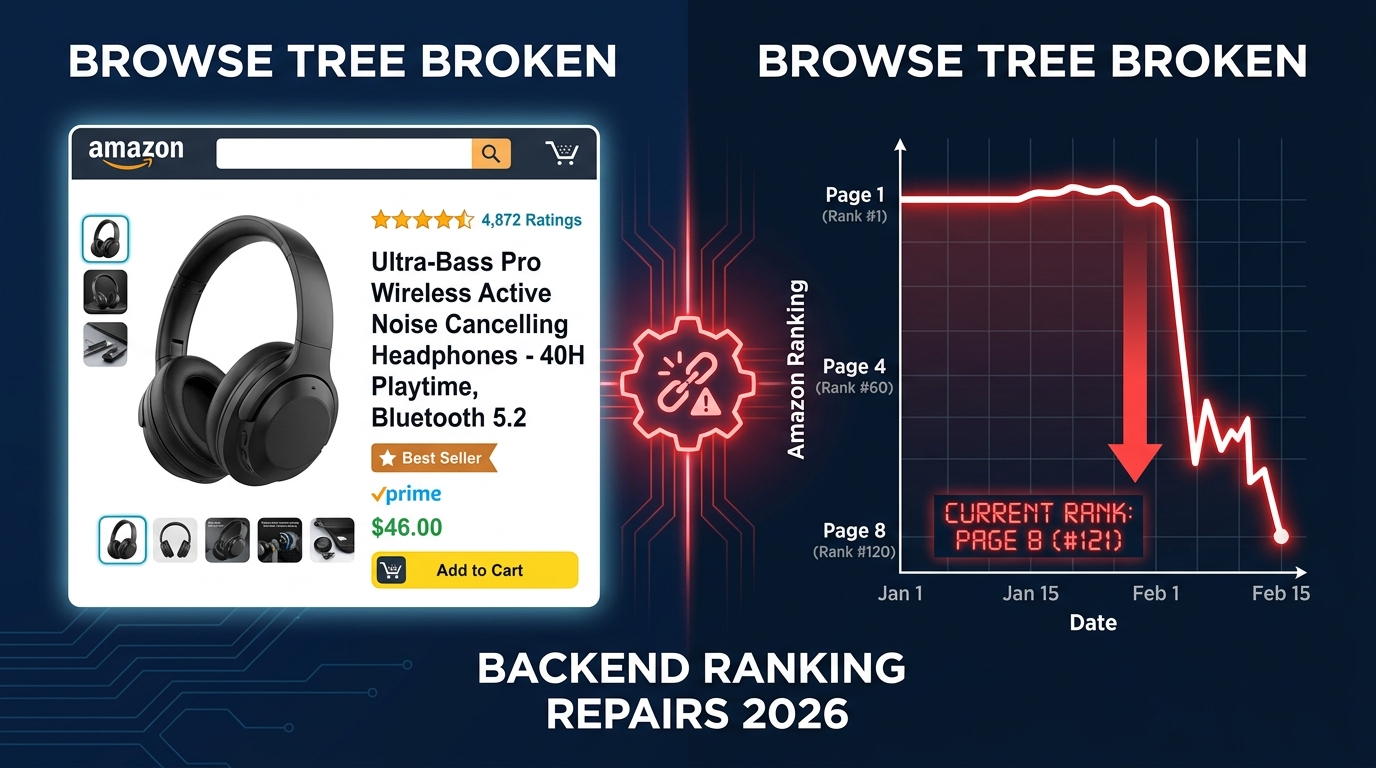
You’ve done everything right. The images are clean. The title hits the character limit perfectly. The bullet points read like they were written by a conversion specialist — because they were. You’ve seeded the backend search term field with 249 bytes of carefully researched keywords. You’re running sponsored ads with solid bids.
And yet your listing sits on page six. Organic rank? Nowhere. PPC impressions? Fine. Clicks from organic? Basically zero.
This scenario isn’t rare. In 2026, it’s one of the most common — and most misdiagnosed — ranking problems on Amazon. Sellers pour energy into visible listing optimization while the real culprit hides entirely out of sight: a broken or misassigned browse tree node.
Your browse tree assignment is not just an administrative label. It is a structural signal that feeds directly into Amazon’s ranking, filtering, and intent-matching systems. When it’s wrong, it creates a cascade of invisible problems — keyword indexing gaps, category filter exclusions, COSMO algorithm mismatches, and suppressed organic visibility — that no amount of listing copy improvements will fix.
This guide is a technical deep-dive into that problem. It covers how the browse tree works at the backend level, why misassignment causes ranking suppression that defies conventional diagnosis, and exactly how to repair it — from the fastest self-service method to the flat file surgery that forces changes when Seller Central won’t cooperate. If your listing looks right but performs wrong, this is where the answer lives.
Understanding the Browse Tree: More Than Just a Category Label
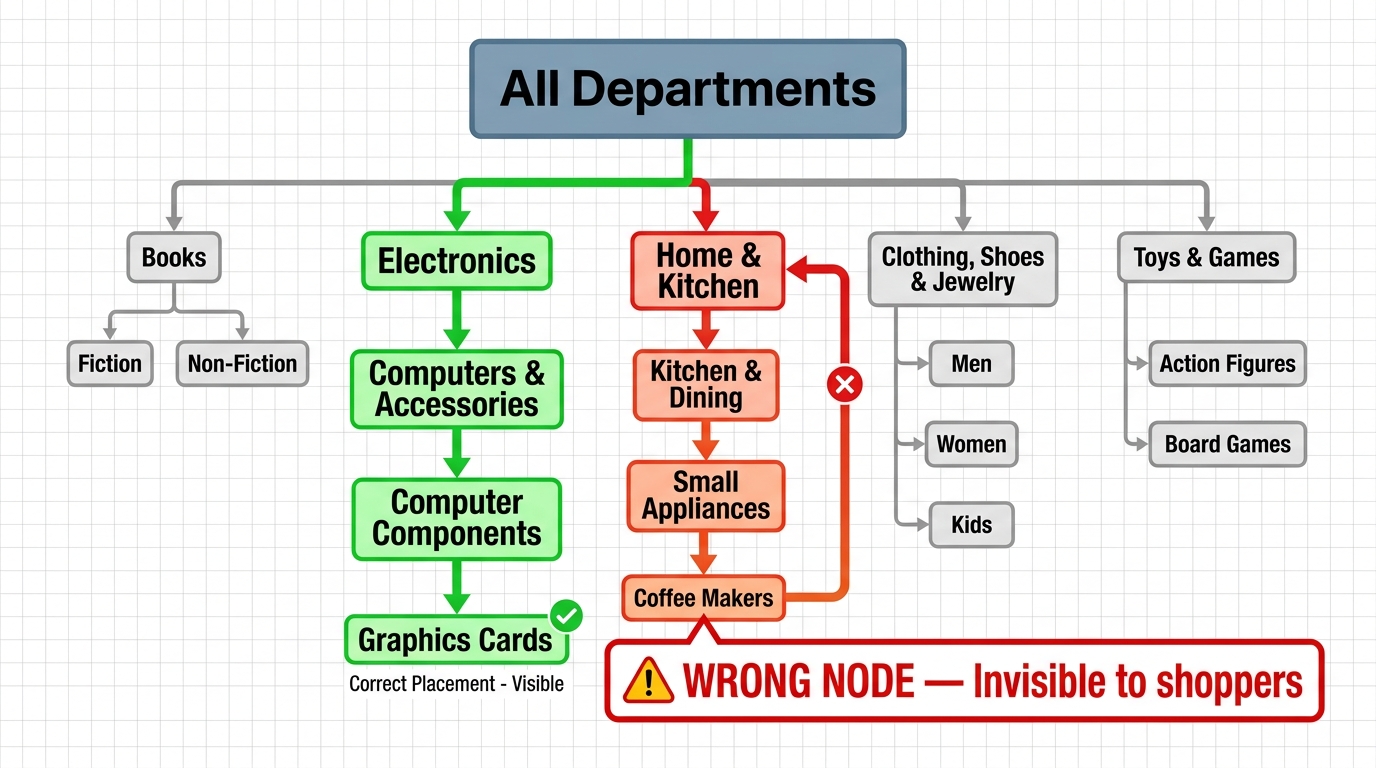
Most sellers think of their browse tree assignment as the path customers see when they click “See all results in Kitchen & Dining.” That framing is too shallow. The browse tree is infrastructure — it’s the taxonomy layer through which Amazon’s catalog functions, and every major algorithmic system reads from it.
What a Browse Node Actually Is
A browse node is a numeric identifier. Every node in Amazon’s category hierarchy has one — from the broadest root categories down to the most granular leaf nodes. When your product is assigned to node 2619533011 (for example), Amazon’s systems know not just where to display your listing, but what type of product you are, what attributes are relevant to filter it, what competing products to compare it against, and what customer intent signals to apply to it.
Leaf nodes — the most specific, deepest nodes in the hierarchy — are where Amazon does its most precise matching. A product assigned to a leaf node gets evaluated against a tightly defined peer group. A product stuck at a parent node gets lumped into a much broader, more competitive, and far less relevant pool. In practice, that often means no category-level visibility at all, because the algorithm doesn’t know where to place you.
Primary Nodes vs. Secondary Nodes
Amazon allows sellers to assign a primary browse node and up to two secondary nodes per listing. The primary node is the one that governs your Best Seller Rank (BSR), your category badge eligibility, and your position in category browse navigation. Secondary nodes expand your discoverability into adjacent categories without changing your primary ranking context.
Most sellers set a primary node during initial listing creation and never revisit it. That’s where the problem starts. Amazon’s catalog systems can — and do — reassign nodes automatically, particularly after platform-wide category restructuring events. When that happens, your primary node shifts without any notification, and your ranking profile quietly falls apart.
The Difference Between Browse Nodes and Item Type Keywords
These two backend fields are closely related but not identical. The item type keyword (also called the “product type” in flat file uploads) is a text-based field that Amazon uses to infer the correct browse node during listing creation. If your item type keyword is wrong, Amazon may assign you to the wrong node at the outset — and that assignment can persist indefinitely.
Think of it this way: the item type keyword is what you tell Amazon you are. The browse node is where Amazon puts you based on that. If your item type keyword is ambiguous, outdated, or simply incorrect, the resulting node assignment may look plausible on the surface while being completely wrong from a ranking perspective.
How Amazon’s COSMO Algorithm Uses Browse Nodes as Ranking Signals

The conversation around Amazon ranking in 2026 has largely moved on from pure keyword density discussions to understanding the layered algorithmic systems that determine visibility. COSMO — Amazon’s Common Sense Knowledge Generation and Serving System — is the layer that makes browse tree accuracy more important than it’s ever been.
What COSMO Does
COSMO is a knowledge graph system that Amazon has deployed to bridge the gap between a customer’s search query and the actual product they need. Rather than relying purely on keyword matching, COSMO maps queries to product use cases, categories, and attributes using a graph built from two types of behavioral data: search-buy pairs (cases where a customer searched for X and bought Y) and co-buy pairs (cases where customers bought two products together).
The published version of this system contains approximately 6.3 million nodes and 29 million edges spanning 18 major product categories. In testing on 10% of U.S. traffic, COSMO-informed ranking delivered an 8% improvement in navigation engagement and a 0.7% increase in sales — modest numbers at the dataset level that translate to massive shifts at the ASIN level.
Browse Nodes as Intent Anchors
Here’s the critical implication for sellers: COSMO uses your browse node as a primary context signal for intent matching. When a customer searches “camping stove,” COSMO doesn’t just look for the words “camping stove” in your title. It maps that query to a category hierarchy — Camping & Hiking > Camping Cooking > Camping Stoves & Accessories — and evaluates which products are correctly placed within it.
If your camping stove is sitting in a misassigned node — say, Outdoor Barbecue Grills — COSMO’s intent-matching logic actively works against you. Your listing may be technically keyword-indexed for “camping stove,” but the system’s knowledge graph context says your product belongs to a different use-case cluster. The result is suppressed organic visibility on searches where your product should dominate.
Rufus AI and Category-Filtered Search
Amazon’s Rufus AI assistant, which now handles a substantial portion of complex and conversational search queries, makes browse tree accuracy even more consequential. Rufus relies heavily on structured product attributes and category context to answer questions like “What’s a good camping stove for solo backpackers?” Products that are correctly categorized with the right node and matching attribute fields (weight, fuel type, BTU output) get surfaced in these AI-driven responses. Products in the wrong node, regardless of their title keywords, typically do not.
The 7 Signs Your Browse Tree Assignment Is Broken
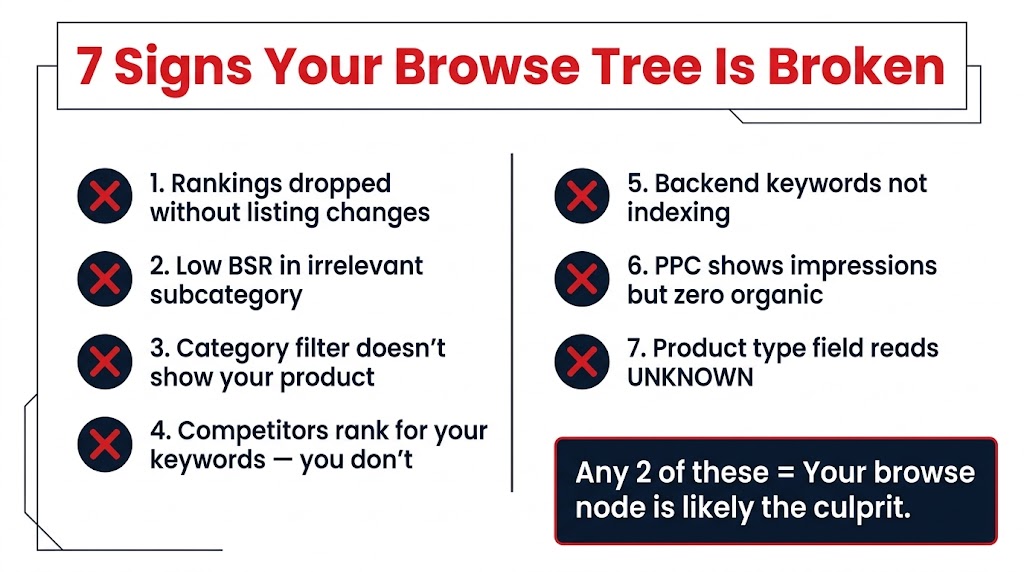
Browse tree misassignment doesn’t announce itself. It hides behind symptoms that look like other problems — weak conversion, thin review counts, budget-limited PPC. Before you can fix it, you have to recognize it. These are the seven diagnostic signals that point specifically to a browse tree problem.
1. Rankings Dropped Without Any Listing Changes
If your organic ranking for core keywords fell sharply — say, from position 12 to position 85 — without any change to your listing, ads, pricing, or review count, a node reassignment is a primary suspect. Amazon’s catalog reconciliation processes run continuously, and bulk reclassification events happen without notice. Compare the timing of your rank drop to any known Amazon platform updates.
2. Your BSR Lives in an Irrelevant Subcategory
Log into your listing and scroll to the product detail section where Best Seller Rank is displayed. If your BSR subcategory reads something unrelated to your actual product — a kitchen scale showing rank in “Industrial Weighing Scales,” for example — your primary browse node is wrong. The BSR subcategory is a direct reflection of your primary node assignment.
3. Category Filter Navigation Doesn’t Surface Your Product
Go to Amazon and manually browse your product’s intended category path using the left-rail navigation filters. Use the category sidebar, select relevant subcategories, and look for your ASIN in the results. If you can’t find your listing through category navigation while it’s clearly visible via a direct keyword search, your browse node is not where you think it is.
4. Competitors Rank for Your Target Keywords — You Don’t
Pull up five to ten direct competitors. Check their category path by looking at their BSR subcategory. If they’re uniformly sitting in a node that differs from yours, and they rank above you for shared keywords, the node difference is likely a major contributor to the ranking gap — not just listing quality or review volume.
5. Backend Keywords Are Not Indexing
Use a keyword indexing checker (Helium 10’s Index Checker or a manual search using your ASIN + keyword in the Amazon search bar) to verify which backend keywords your listing is indexed for. If core terms from your backend search term field aren’t indexed — particularly terms that match your target category’s common language — a node mismatch is disrupting the indexing signal.
6. PPC Shows Strong Impressions but Organic Rank Is Absent
This is one of the most telling patterns. If your Sponsored Products campaigns show healthy impression volume on a keyword (confirming that Amazon will show your listing when paid for), but your organic rank for that same keyword is nonexistent or extremely low, you have a relevance signal problem at the structural level. Amazon’s algorithm is willing to monetize your listing but doesn’t consider it organically relevant to that search context — a classic symptom of a node mismatch.
7. The Product Type Field Is Blank, Generic, or Wrong
In Seller Central, go to your listing’s Vital Info tab and look at the “Item Type” or “Product Type” field. If it reads something generic, clearly wrong for your category, or shows as blank, your browse node was likely assigned by Amazon’s automated system based on an ambiguous or incorrect signal. This is the root cause you need to address at the backend level.
The Browse Node Repair Workflow: From Diagnosis to Fix
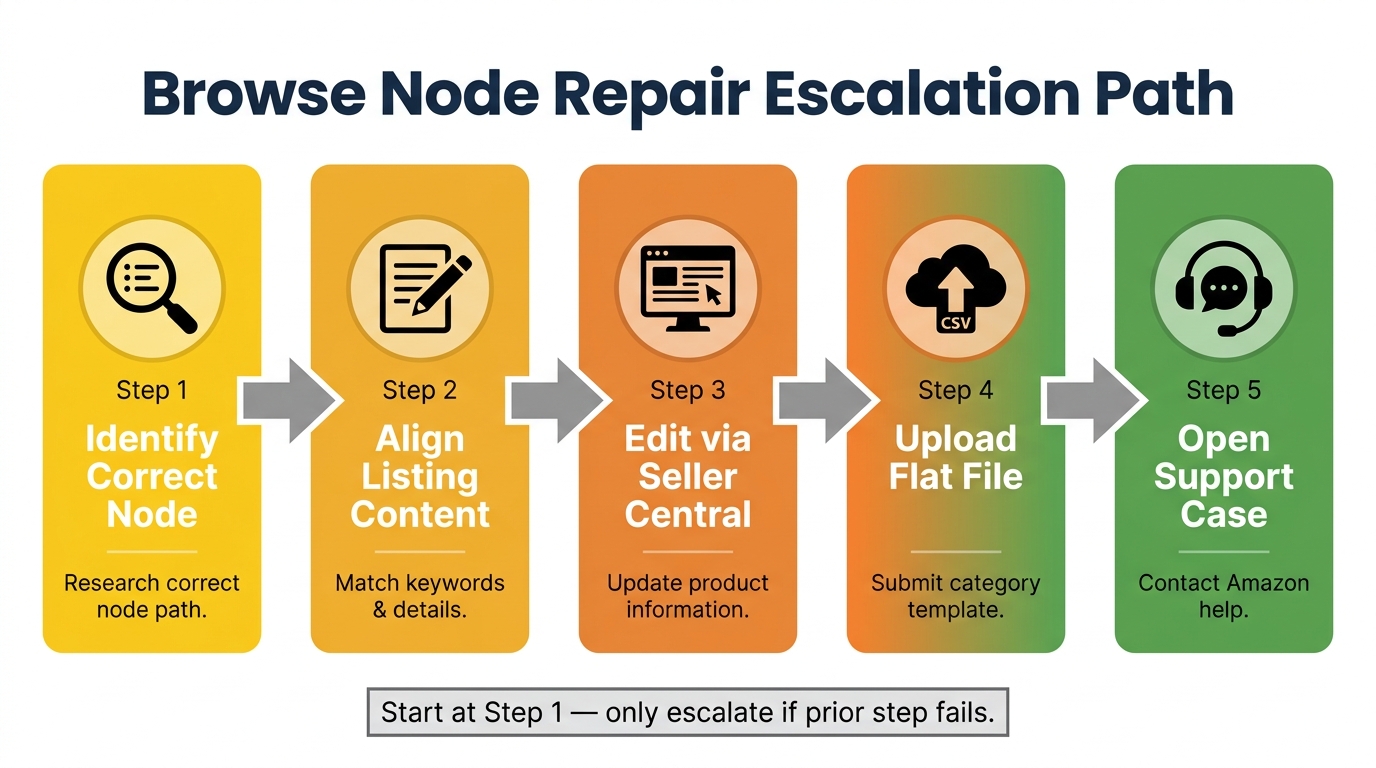
Fixing a browse tree problem requires working through a specific escalation path. Not every method works for every situation, and attempting them in the wrong order wastes time and can complicate later steps. Follow this sequence and only escalate when the previous method fails to produce a confirmed change within 48–72 hours.
Step 1: Identify the Correct Node
Before you change anything, confirm exactly which browse node your product should be in. There are two reliable methods for doing this.
Method A — Competitor node lookup: Find five to ten top-performing competitors for your main product keyword. On each competitor’s product detail page, scroll to the “Additional Information” or “Product Details” section and look at their BSR subcategory path. The subcategory name directly reflects their primary browse node. If multiple strong competitors share the same subcategory path, that’s almost certainly the correct node for your product.
Method B — Browse Tree Guide (BTG) reference: Amazon publishes category-specific Browse Tree Guide files, downloadable as Excel spreadsheets from Seller Central’s help pages (search “Browse Tree Guide” in Seller Central help, or reference document G1641 in your marketplace). These files list the numeric node IDs, node names, and their hierarchical relationships. Cross-reference your product type with the BTG to find the deepest (most specific) applicable leaf node. Note the node ID — you’ll need it for the repair steps.
Step 2: Align Your Listing Content First
This step is non-negotiable and is the one most sellers skip. Amazon’s automated categorization reads your title, bullet points, and product description to infer your product type. If your listing content doesn’t clearly match the language and terminology of your target browse node, any node change you make may be automatically overwritten by the system during its next reconciliation pass.
Before touching the backend, make sure your title includes the primary product descriptor that matches your target node (e.g., “Backpacking Stove” not just “outdoor cooker”), and that your bullet points use the attribute language common in that category (weight, fuel type, compatibility). This content alignment is what makes the node fix stick.
Step 3: Use the Self-Service Browse Node Change Tool
Amazon has a self-service tool specifically for category corrections. In Seller Central, search for “change browse node” or navigate to Help > Contact Us > Products and Inventory > Fix a product page. Select “Change a product’s category or browse path.” Enter your ASIN, the current (incorrect) node, and the desired (correct) node ID.
This tool typically processes within one to two hours for straightforward corrections. If the change appears in your listing’s BSR subcategory within 24 hours, the repair is complete. Verify by checking keyword indexing 48–72 hours after the change confirms.
Step 4: Escalate to a Seller Support Case
If the self-service tool either doesn’t accept your node ID or the change fails to stick after 72 hours, open a formal Seller Support case. Go to Help > Get Support > Selling on Amazon > Products, Listings & Inventory > Fix a product page.
In your case message, include: the exact ASIN, the current incorrect browse node ID and name, the desired correct browse node ID and name (from the BTG), at least three competitor ASINs with confirmed correct categorization in the target node, and a brief explanation of why your product belongs in that node (e.g., manufacturer documentation, product specifications). Screenshot evidence of competitor node placements significantly improves case resolution speed.
Expect a 24–72 hour response window. Support will often request additional documentation. Provide it promptly and follow up every 48 hours if the case goes quiet. Changes approved through support typically take an additional 24–48 hours to propagate.
Flat File Surgery: Forcing Node Changes When Seller Central Won’t Cooperate
For a subset of browse tree problems — particularly those involving deeply entrenched incorrect assignments or product type conflicts that Seller Central’s front-end doesn’t expose — flat file uploads are the most effective repair method. This is the backend surgery approach, and it requires precision.
Downloading the Right Template
The flat file template must match your intended target category, not your current (wrong) one. In Seller Central, navigate to Inventory > Add Products via Upload > Download an Inventory File. Select your target product category from the dropdown. This generates a template with the correct fields for that category, including the item_type, product_type, recommended_browse_nodes, and category-specific attribute fields.
If you download the template for your current wrong category, you’ll be working with the wrong field set and potentially compounding the problem. Always template-match to your destination node.
Filling the Critical Fields
In the flat file, the fields that drive browse node assignment are:
- item_type: The item type keyword that corresponds to your target browse node. Find the correct value in the BTG file — it’s listed alongside each node ID.
- product_type: In newer flat file schemas, this maps to the Amazon product type taxonomy. Match it exactly to what appears in competitors’ listings for your target category.
- recommended_browse_nodes: Enter your primary node ID here. For secondary nodes, there’s often a separate
browse_node_2field. - update_delete: Set this to
PartialUpdate— notUpdateorDelete. PartialUpdate changes only the fields you’ve modified without overwriting fields you haven’t touched. Using a full Update can accidentally blank out data in fields you didn’t populate in the flat file.
The Byte Limit Issue and Its Connection to Node Problems
While you’re in the flat file, audit your backend search terms field simultaneously. One common but silent problem is the 249-byte limit on backend search terms (not 249 characters — bytes, which differ for special characters and accented letters). If your backend search terms field exceeds 249 bytes, Amazon silently ignores the entire field — not just the excess. You lose all keyword indexing from that field.
Use a UTF-8 byte counter (freely available online) to measure your backend search terms string before uploading. If you’re over 249 bytes, trim from the least valuable keywords first. Note also that any keywords already present in your title or bullet points are wasted bytes in the backend field — Amazon already indexes them, and duplication doesn’t add ranking weight. Remove every duplicate and replace it with long-tail variations not used in the visible listing.
Upload, Wait, and Validate
Upload the flat file via Inventory > Add Products via Upload > Upload your inventory file. Amazon processes flat file uploads in batches, typically within four to eight hours, though complex category changes can take 24–48 hours. Download the processing report to confirm there are no errors — error codes in the report indicate which fields were rejected and why.
After the upload confirms success, wait 48 hours before assessing results. Check your BSR subcategory to confirm the node change, then run keyword indexing checks on your target terms. If the change doesn’t hold after 72 hours, the listing content still isn’t aligned well enough with the target category — return to Step 2 and tighten the copy further before re-uploading.
Product Type Keywords vs. Browse Nodes: Why Both Matter Separately
A source of significant confusion for sellers tackling browse tree problems is the relationship between the product type keyword (item type keyword) and the browse node ID. They are not the same thing, they serve different functions, and fixing one without the other is one of the most common reasons node repairs fail to stick.
The Item Type Keyword: Amazon’s Classification Input
The item type keyword is what Amazon reads to determine where to put you. It’s a text string (not a number) drawn from Amazon’s taxonomy — terms like backpacking-stoves, kitchen-knife-sets, or running-shoes-for-men. When you use a flat file or certain Seller Central listing creation flows, Amazon maps your item type keyword to a browse node ID using an internal lookup table.
The problem is that many item type keywords are outdated, ambiguous, or simply don’t exist in newer taxonomy versions. If your item type keyword is deprecated, Amazon’s system may assign a fallback node that’s adjacent to — but not the same as — your intended destination. That fallback stays in place silently until someone corrects it.
Structured Attributes: The Hidden Ranking Weight
In 2026, Amazon’s ranking systems assign meaningful weight to structured product attributes beyond the browse node. Research indicates that products with 95–100% of category-relevant attribute fields completed rank an average of 8–12 positions higher in the same category than comparable listings with 70–80% field completion.
These attributes include fields like intended use, target audience, subject matter, material, compatibility, and dozens of category-specific values. In flat file templates, these fields appear as optional columns — which is why most sellers leave them blank. That’s a significant mistake. Completing these fields does two things: it signals to COSMO what use-case cluster your product belongs to, and it enables filter-based search (customers using left-rail filters to narrow results) to surface your listing.
When you’re already in the flat file to fix your browse node, take the time to fill every applicable attribute field. It’s the lowest-effort, highest-return optimization available during a node repair process.
The Dependency Chain
The correct execution order is: item type keyword → browse node assignment → attribute field completion → backend search term alignment. Each layer depends on the one before it. Sellers who skip ahead to backend keyword optimization without fixing the item type keyword and node first are optimizing on top of a broken foundation. The keyword work may produce minimal indexing improvement because the algorithm’s structural context for the product is wrong.
Backend Search Term Alignment After a Node Fix
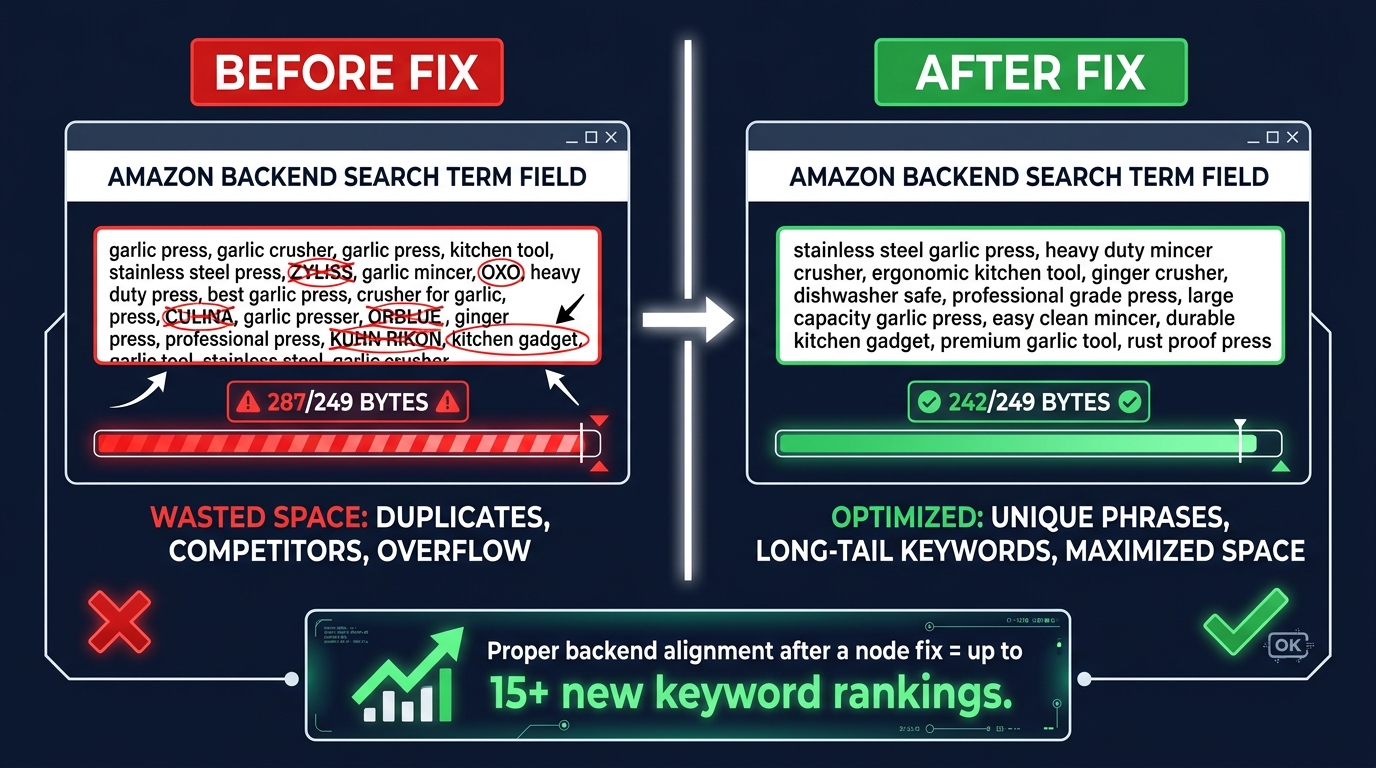
Once the browse node fix is confirmed and your BSR subcategory reflects the correct destination, it’s time to revisit your backend search terms with fresh eyes. The backend field you built for the wrong node is optimized for the wrong context. After a node fix, the keyword landscape changes meaningfully.
Re-Audit Your Backend Terms in the Correct Context
Pull up your target browse node on Amazon and look at the top 20–30 organic results. These are the products the algorithm currently considers most relevant to your new node context. Analyze their titles and bullet points for recurring terminology — these are the semantic signals the algorithm expects from a product in your node. Any terms that appear consistently across top-ranking competitors in your correct node but are absent from your backend field represent indexing opportunities.
Use a keyword research tool to pull the search query data for your target node category. Look specifically for long-tail queries (three to five words) that reflect the specific use cases of products in your node. These are the keywords you want in your backend field — they’re too specific for your title but too valuable to leave out entirely.
The Rules That Still Apply Regardless of Node
The 249-byte limit is absolute and universal. Stay under it. Additionally:
- No keyword repetition: Any word already in your title, bullets, or description is already indexed. Repeating it in the backend field wastes bytes without adding ranking weight.
- No competitor brand names: Amazon’s policies prohibit using competitor brand names in backend fields. Violations can trigger listing suppression.
- No promotional language: Words like “best,” “cheapest,” or “top-rated” are irrelevant to indexing and waste your byte budget.
- Do include: Regional spelling variations (color vs. colour), common misspellings of your product category terms, synonyms from adjacent use cases, and Spanish-language equivalents if your market has significant Spanish-speaking buyers.
Keyword Rotation After a Node Fix
Here’s a tactic that’s particularly useful in the 30–60 days after a browse tree repair: treat your backend search terms as a rotating testbed. After confirming your initial post-fix keyword set is indexed, use Amazon’s Search Query Performance Dashboard (available in Brand Analytics for brand-registered sellers) to identify which terms are generating impressions and which are dormant. Every four to six weeks, replace the lowest-performing backend keywords with new candidates from your competitor analysis.
This matters because a freshly reassigned browse node takes time to build ranking authority in its new context. Rotating keywords during this period helps you discover which terms the algorithm is actively rewarding in your correct node — information you can then use to strengthen your title and bullet points in subsequent listing updates.
What Changes (and What Doesn’t) After a Successful Browse Tree Repair
Managing expectations after a browse tree fix is important, both for your own planning and if you’re managing listings for clients. A successful node repair doesn’t produce overnight results — it removes a structural barrier and enables normal ranking signals to function. The difference matters.
What Changes Relatively Quickly (Days 1–14)
Within the first one to two weeks of a confirmed node fix, you should see measurable changes in keyword indexing. Run a comprehensive indexing check on your 20–30 target keywords 72 hours after the node change confirms. You’ll likely see terms indexing that weren’t indexed before — particularly category-specific modifiers and long-tail variants that require correct node context to be indexed.
Category filter visibility also improves quickly. If you manually browse your correct category path in Amazon’s navigation, your product should now appear in results when the appropriate subcategory filter is applied. This doesn’t mean you rank at the top — just that you’re now visible within the correct filtering context.
What Takes Time (Weeks 2–8)
Organic keyword ranking in the correct node takes longer to rebuild. Amazon’s ranking system doesn’t simply move your listing from position 85 to position 12 because you fixed the structural problem. It needs to observe conversion signals in the correct context — actual purchases driven by organic impressions in the right category, with the resulting customer behavior (dwell time, review rates, return rates) feeding back into the ranking model.
During the two-to-eight-week rebuilding period, your PPC data becomes particularly valuable. Run Sponsored Products campaigns targeting your core category keywords and monitor the organic rank data for those terms week over week. The combination of ad-driven traffic (which shows the algorithm that your listing converts for these terms) and improving structural signals (correct node, complete attributes, aligned backend keywords) accelerates the organic ranking recovery.
What Might Not Change at All
A browse tree fix doesn’t compensate for weak conversion rates. If your main image, pricing, or review profile is underperforming relative to category competitors, the structural fix removes the ranking barrier but exposes the underlying conversion problem. You may see improved visibility — more impressions in the correct context — without the corresponding click-through and purchase rates needed to sustain ranking gains.
This is actually useful information. A listing that gains correct indexing and category visibility but still doesn’t rank well has a conversion problem, not a structural problem. The fix correctly isolates the issue and points you to the next optimization step.
Preventing Re-Suppression: Ongoing Browse Tree Hygiene
The frustrating reality of browse tree management is that it’s not a one-time fix. Amazon’s catalog systems perform ongoing reconciliation, and browse node assignments can shift again — especially following major platform updates, category restructuring events, or changes to the Product Types API (which Amazon has been migrating sellers toward as of late 2025 and into 2026).
Monthly Node Verification Checks
Build a monthly check into your listing management routine. For each active ASIN, verify the BSR subcategory matches your expected node. This takes about 30 seconds per ASIN and catches re-suppression events early — before they compound into weeks of lost ranking momentum. Set a recurring calendar reminder and make it non-negotiable.
Monitoring the Browse Tree Guide for Category Changes
Amazon periodically updates the Browse Tree Guide files to reflect taxonomy changes. When Amazon reorganizes a category — adding new leaf nodes, merging existing ones, or deprecating old item type keywords — listings in those categories may be automatically reassigned. Download your relevant BTG files quarterly and compare them to the previous version. If node IDs have changed or new leaf nodes have been added that are more specific than your current assignment, proactively update your listings before the automated reconciliation does it for you in a less favorable direction.
New Listing Protocol: Getting the Node Right From the Start
For any new ASIN launch, treat browse node selection as the first step — not the last. Before writing a word of copy or selecting images, identify your target leaf node using the BTG, confirm it by cross-referencing five to ten top competitors, and build your title, bullet points, and item type keyword around that node’s semantic expectations. Launching into the correct node from day one is dramatically easier than repairing a wrong assignment after launch.
Watch for Amazon’s Automated Reclassification Events
Amazon’s catalog team periodically runs bulk reclassification operations, typically announced (if at all) in Seller Central news with minimal lead time. The October 2025 Amazon Handmade reclassification affected significant node assignments across multiple marketplaces with limited notice. Monitor Seller Central news and relevant seller forums for announcements that might affect your categories. When reclassification events happen, audit all affected ASINs within 24–48 hours of the announced effective date — don’t wait for performance signals to tell you something went wrong.
The Product Types API Migration and What It Means
Amazon’s ongoing migration toward the Product Types API represents a longer-term shift in how backend categorization works. The API-driven model uses a more structured, schema-based approach to product attributes and type assignments. For sellers who rely heavily on flat file uploads or third-party listing tools, this migration may cause existing item type keywords and node assignments to behave differently over time.
Stay in contact with your listing software vendor about their Product Types API integration timeline. Sellers using tools that haven’t fully migrated to the new schema may find their item type keywords being interpreted differently, which can trigger the same kind of silent node reassignment that causes the ranking problems described throughout this guide.
The Unsexy Fix That Changes Everything
There’s a reason browse tree problems persist so stubbornly among experienced sellers: they don’t look like browse tree problems. They look like weak copy, thin review counts, underfunded ads, or algorithm changes working against you. The actual root cause — a misassigned node ID buried in the backend — is completely invisible in normal listing audits.
The diagnostic approach matters as much as the fix itself. Before investing in new photography, rewriting copy, or doubling your PPC budget, spend 30 minutes running through the seven diagnostic signals outlined in this guide. If two or more apply to your listing, you’re almost certainly dealing with a structural browse tree problem that no amount of surface-level optimization will solve.
The repair workflow isn’t glamorous. Downloading BTG files, counting UTF-8 bytes, filing support cases with competitor ASIN evidence, and uploading partial-update flat files is tedious work. But the asymmetry is significant: a browse tree fix that takes four hours to execute can unlock organic ranking momentum that would otherwise require months of expensive PPC spend to approximate.
Key Takeaways for Immediate Action
- Check your BSR subcategory today for every active ASIN. If it doesn’t match where your product belongs, you have a node problem.
- Run a keyword indexing audit on your 20 most important target keywords. Gaps in indexing on category-specific terms often trace back to node misassignment.
- Download the Browse Tree Guide for your product category and verify that your item type keyword exists in the current version and maps to your intended leaf node.
- Never use a full flat file Update to fix a node — always use PartialUpdate to avoid overwriting fields you didn’t intend to change.
- Align listing content before attempting any node change — the system reads your copy to validate the requested assignment. A mismatch between your title language and the target node is the leading cause of node fixes that don’t stick.
- Complete all structured attribute fields in the flat file while you’re already in there — this single action has been linked to 8–12 position rank improvements for correctly categorized products.
- Build a monthly node verification check into your standard listing management routine. Amazon’s catalog reconciliation runs continuously, and re-suppression without monitoring is simply lost revenue.
Amazon’s ranking systems in 2026 are more sophisticated, intent-driven, and structurally sensitive than they’ve ever been. The sellers who outperform their peers aren’t necessarily running better ads or writing better copy — they’re the ones who understand that the foundation of organic visibility is structural accuracy, and that foundation starts with the browse tree.