


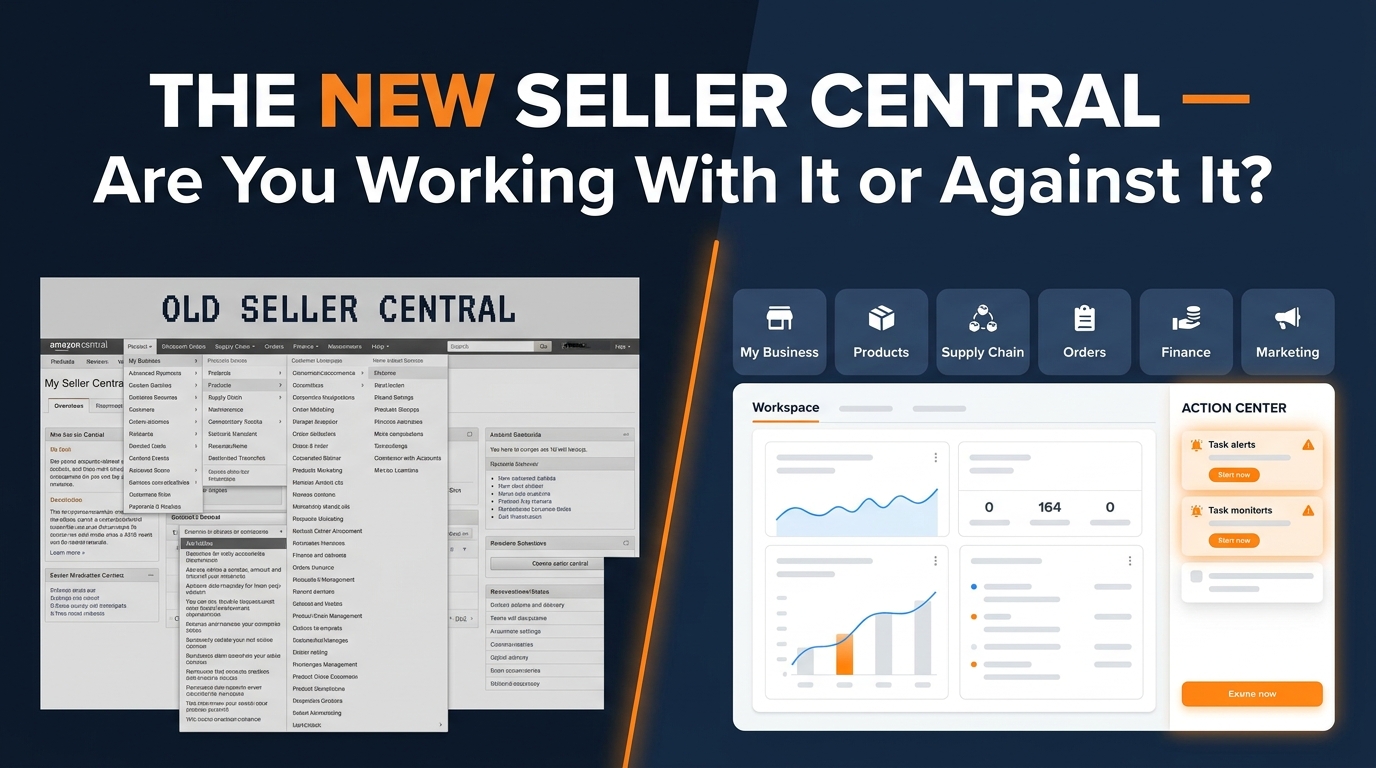

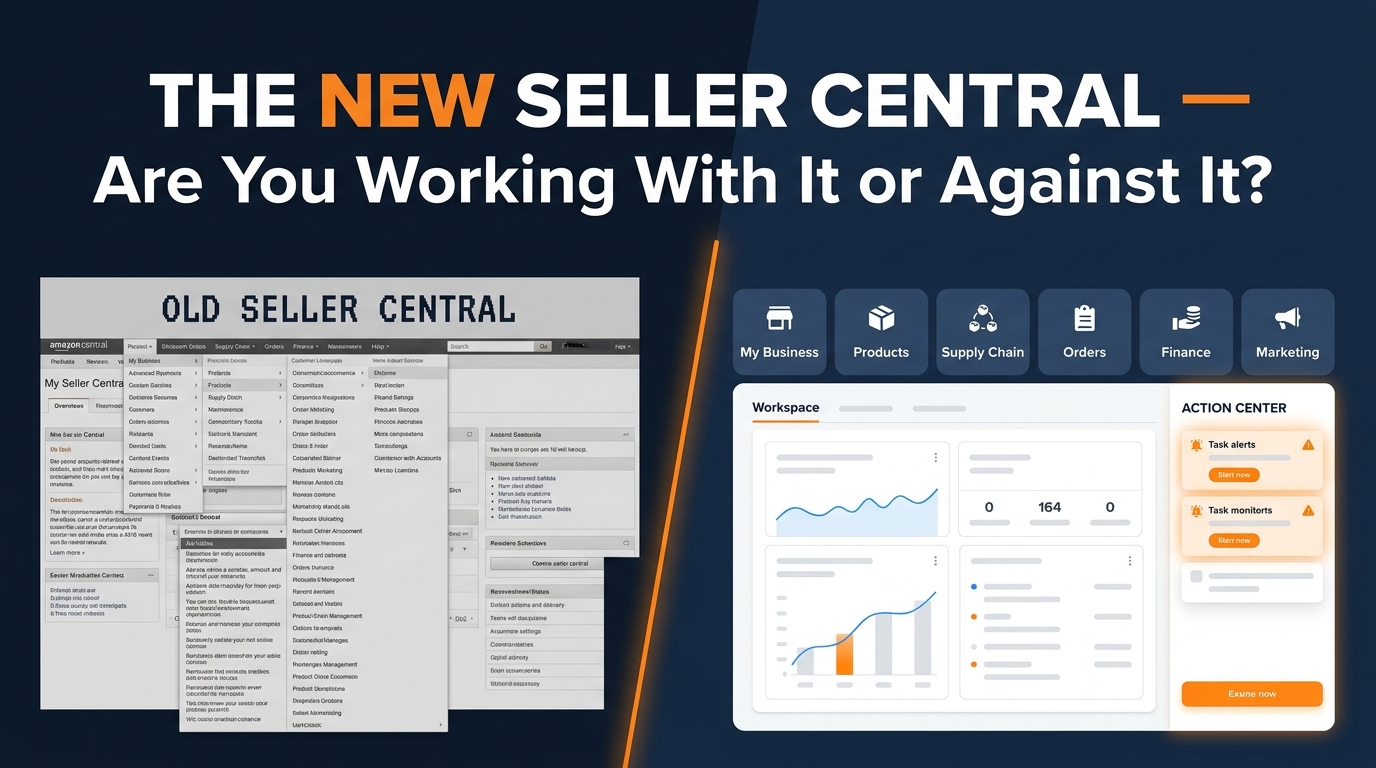
Amazon’s new Seller Central interface has been rolling out since early 2026, and by June 3 it became the default experience for all newly registered seller accounts globally. The full transition deadline — when existing sellers lose the ability to revert to Classic Seller Central — is moving through August 2026 in phased waves.
Which means if you’re still navigating by muscle memory, you’re already spending more time than necessary on tasks that the new interface was designed to make faster.
The frustration in seller communities is real. Forum threads describe the redesign as “busy,” “clunky,” and counterintuitive. But here’s the thing: most of that friction isn’t a product design problem. It’s a transition problem. Sellers are using new navigation with old mental models, and that gap — the cost of learning a new system while still trying to run a business — is what we’re calling the learning tax.
This post is about eliminating that tax as quickly as possible. We’ll break down exactly what changed structurally, which features actually deliver productivity gains (including one that’s been largely overlooked), and how to rebuild your team’s workflows so the new interface works for you rather than against you. If you manage a team, run multiple stores, or have SOPs built around the old click paths, this is where to start.
What Actually Changed — And What Amazon Left Alone
Before you can optimize anything, you need an accurate mental model of the redesign. And the most important thing to understand is this: Amazon changed the navigation architecture, not the underlying tools.
Your listings are in the same state. Your inventory data is the same. Your order history, FBA settings, integrations, and team user permissions — all untouched. Amazon has been consistent about this in its official documentation: the new experience is a reorganization, not a rewrite.
From Menus to Workspaces
The old Seller Central ran on a top-level menu-and-dropdown model. You’d hover over a menu label like “Inventory” or “Reports,” then drill down through nested submenus to find what you needed. It was functional, but it was built for single-task navigation. You had to know the menu hierarchy to work fast.
The new interface replaces that model with six purpose-built workspaces: My Business, Products, Supply Chain, Orders, Finance, and Marketing. Instead of browsing menus, you navigate to the workspace that matches the business function you’re working on, then act from within that context.
This is a fundamentally different interaction model. The old system was organized around tool type. The new system is organized around business activity. That shift feels disorienting at first — especially if you’ve spent years knowing that FBA shipment creation lives under “Inventory → Manage FBA Shipments.” Now it lives in Supply Chain. Not because the tool changed, but because the filing system did.
The Search Bar Is Now Your Fastest Path
One of the most underused features in the new interface is the global search bar at the top of the console. Unlike the old search, this one surfaces tools and pages — not just your product catalog. Type “restock inventory” or “advertising reports” or “business reports” and you’ll get direct links to the relevant pages without touching a single workspace tab. For power users who already know what they’re looking for, this is the fastest navigation path in the new Seller Central. Build it into your muscle memory immediately.
What’s Still in the Same Place
Amazon confirmed that the following are unaffected by the interface change: active listings and catalog data, inventory quantities and restock settings, historical order data, FBA program settings, third-party integrations and API connections, team member accounts and secondary user permissions, and advertising campaigns. If you’re anxious that the transition broke something in your account, it almost certainly didn’t. Run a spot check on your key metrics immediately after switching, but don’t expect to find data gaps.
The Action Center: Your New Daily Command Post
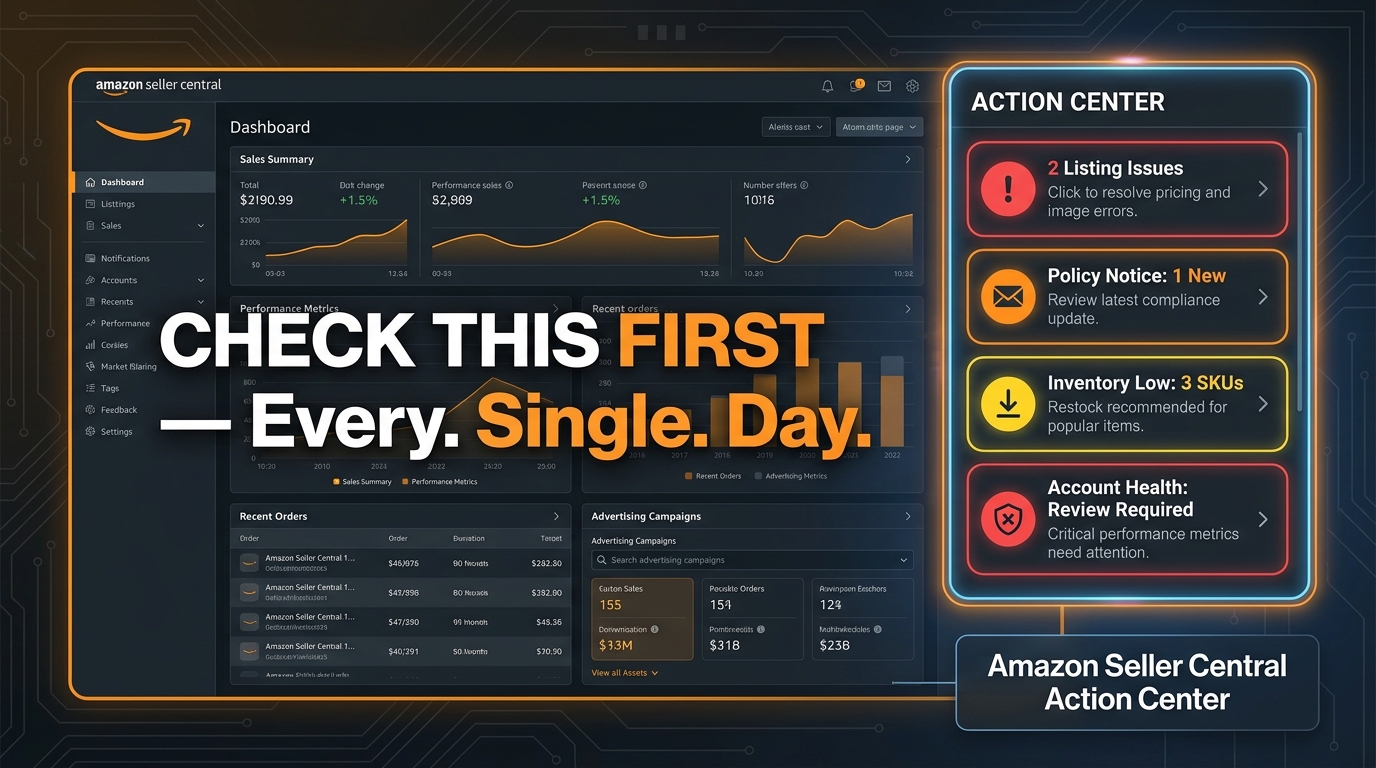
The most operationally significant change in the new interface isn’t a workspace — it’s the Action Center. This is a persistent element that lives across the new experience and aggregates every urgent task requiring your attention: listing suppression issues, policy notices, low inventory alerts, performance warnings, and account health flags.
In the old interface, these alerts were scattered. You might catch a policy notice on your homepage, a suppressed listing buried in Manage Inventory, and an account health alert only if you remembered to check it. The fragmentation meant that small issues often grew into bigger ones simply because they weren’t visible when they mattered.
Why “Check This First” Isn’t Just Advice — It’s System Design
The Action Center was explicitly designed to function as a triage hub. Amazon’s intent is that sellers start their daily session here, work through the items that require immediate action, and then move into workspace-specific tasks. This is different from how most sellers used to start their day, which often meant jumping straight to sales data or inventory levels.
The practical implication: if you’re not starting your daily Seller Central session in the Action Center, you’re using the interface against its own design logic. Time-sensitive issues — suppressed listings, policy compliance deadlines, inventory shortfalls — compound quickly. A listing suppressed for 48 hours while you focus on ads is a real revenue event. The Action Center is designed to make that scenario less likely, but only if you actually check it.
Setting Up Action Center Habits for Teams
For teams with multiple Seller Central users, the Action Center presents a coordination opportunity. Because it aggregates across the account, anyone with sufficient permissions can see and action on open items. The risk, without a clear process, is that multiple team members see the same alert and either both act (duplication) or each assumes the other handled it (nothing gets done).
The solution is straightforward: assign ownership of Action Center triage to a specific person or role. This becomes the equivalent of a daily standup task. That person opens Action Center at the start of the session, categorizes new items, and either resolves or assigns each one before the team moves into their individual workspaces. This takes roughly 10-15 minutes on a typical day and prevents the kind of slow-burn account damage that used to accumulate when alerts lived in disparate parts of the interface.
Reading the Priority Signals
Not all Action Center items carry equal weight. Policy notices with deadlines, account health violations, and listing suppressions that affect live traffic represent your highest-priority tier. Low inventory alerts and informational notices sit in the next tier. Developing a mental triage framework — even an informal one — means you’re not treating a restock reminder with the same urgency as an account suspension warning. Over time, your team will recognize which alert types tend to appear in your specific account and can build category-specific response protocols.
A Workspace-by-Workspace Breakdown
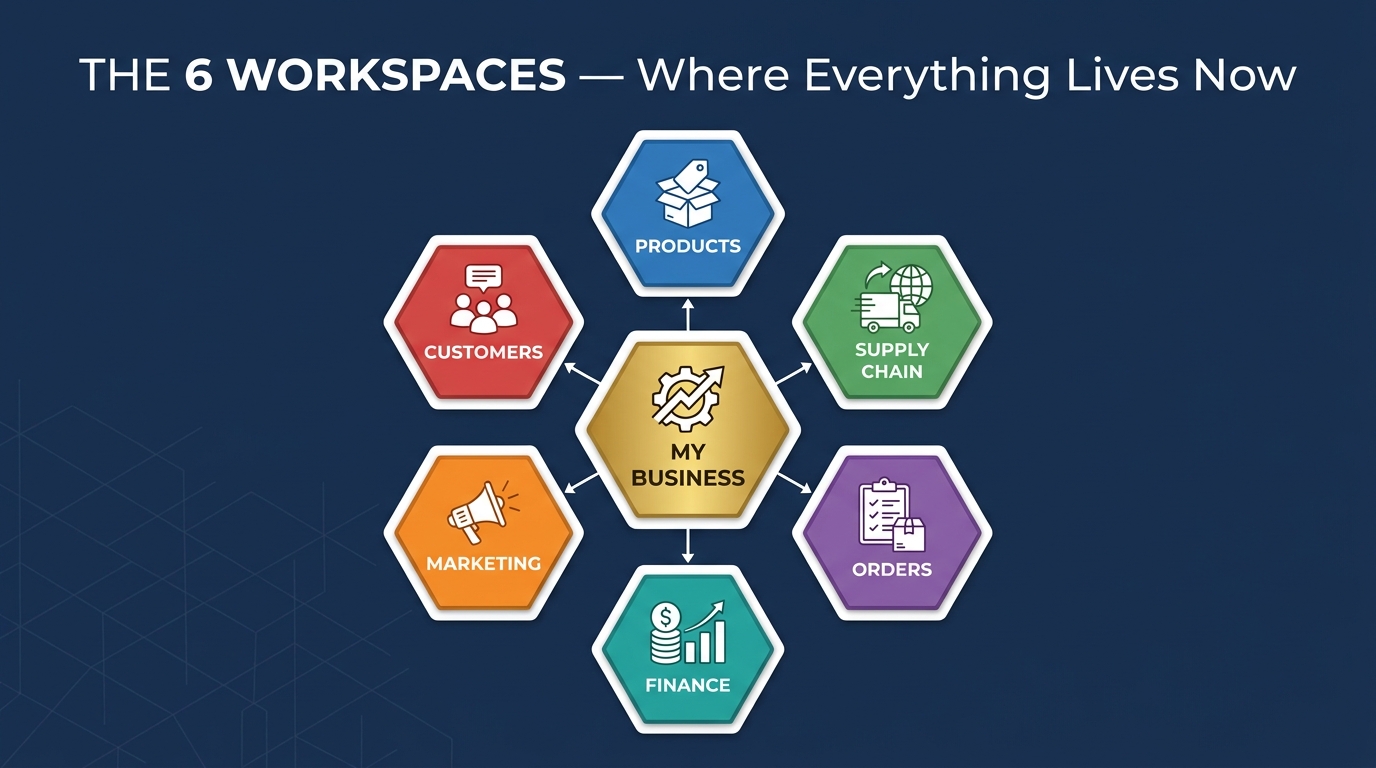
Understanding where your most-used tools now live is the fastest way to cut the learning tax. Here’s a practical breakdown of each workspace and the tools you’ll find there.
My Business: Your Account at a Glance
Think of My Business as the executive summary of your Amazon operation. This workspace delivers a real-time snapshot across four dimensions: sales performance, inventory status, active orders, and account health. It’s where you’d go for a daily health check across your entire account before diving into specific tasks.
KPI cards here show metrics like total sales, unit volume, and conversion rate, with click-through access to deeper data. If you manage multiple stores, this workspace is especially valuable because it provides cross-store visibility in a single view — though you’ll need to filter by store or time period to isolate specific data.
For sellers who used to open Seller Central and immediately navigate to Business Reports, My Business is your new equivalent starting point. The data is more surface-level here than in Business Reports, but it’s faster to scan and more actionable for a morning check-in.
Products: Listing and Catalog Management
The Products workspace consolidates all tools related to listing creation, catalog management, quality alerts, and product detail page updates. This is where you’ll manage suppressions, update content, resolve listing quality issues, and create new ASINs. Importantly, listing suppression alerts that appear in the Action Center will often route you here for resolution.
Voice of the Customer data — customer feedback scores by ASIN — also surfaces in this workspace context. For sellers running large catalogs, the ability to see listing quality issues organized by product (rather than hunting through a flat list of alerts) represents a genuine workflow improvement over the old navigation.
Supply Chain: FBA, Inventory, and Shipments
Supply Chain is one of the most significant workspace consolidations in the redesign. Previously, FBA-related tools were scattered: Send to Amazon lived under Inventory, storage reports had their own path, shipment tracking was in a separate section, and restock recommendations required a different navigation path entirely. In the new interface, all of these tools — Manage Inventory, Send to Amazon, FBA shipment tracking, storage utilization, capacity planning, and inventory reports — live together in Supply Chain.
For sellers where FBA operations represent the bulk of their daily work, this is the workspace they’ll live in most. The consolidation reduces context switching and makes it easier to spot correlations (like how a storage overage is affecting your restock limits) that were harder to connect when the relevant data lived in different parts of the old interface.
Orders: Fulfillment and Returns
The Orders workspace handles what you’d expect: order management, shipment confirmation for FBM sellers, return processing, and buyer-seller communication. For FBA-heavy sellers, this workspace sees less daily traffic — Amazon handles most fulfillment operations automatically. For FBM or hybrid sellers, this remains a high-frequency workspace and its consolidation of order actions and communication tools in one place reduces the navigation overhead of managing individual orders.
Finance: Payments, Fees, and Reporting
Finance consolidates payments, settlement reports, fee structures, and financial reporting. If you’re running profitability analysis, reconciling settlement statements, or investigating fee discrepancies, this is your workspace. The organization here is more intuitive than the old navigation for finance-focused tasks — particularly for accountants or finance team members who may access Seller Central primarily for payment data rather than operational management.
Marketing: Ads, Deals, and Promotions
Marketing is where Sponsored Products, Sponsored Brands, and Sponsored Display campaigns are accessed, alongside deals, coupons, promotions, and A+ Content. For advertising-focused users, the key point is that Advertising Console itself remains largely separate — accessible through Marketing but with its own interface once you enter it. The workspace doesn’t change the ads management experience inside Campaign Manager; it changes how you get there.
The Learning Tax: Why Sellers Are Losing Time Right Now
The seller community’s response to the new interface has been candid. Forum discussions describe routinely spending more time on tasks that used to be automatic — not because the interface is worse in an absolute sense, but because the transition interrupted established muscle memory.
This is the learning tax: the measurable cost in time and attention that accumulates during any significant interface change, paid by every person who uses the tool. It’s not a sign that the redesign failed. It’s a predictable consequence of switching any high-frequency workflow tool.
Quantifying the Friction
The most common complaints in seller communities center on a few specific friction points:
- Navigation disorientation: Tools that lived in one location for years now require re-learning. For experienced sellers with deep muscle memory of the old menu structure, this is genuinely costly.
- Chart readability: Some sellers report that month-by-month comparison views are harder to scan in the new interface, particularly in business reporting contexts.
- Nested interactions: Certain workflows that previously surfaced on a single page now require an additional click or step within a workspace.
- Team discoordination: Multi-user accounts where different team members switched at different times created temporary inconsistency in SOPs and communication.
The critical insight here is that most of these friction points are temporary. They stem from the mismatch between old habits and new navigation, not from a fundamental flaw in the new design. Sellers who have completed their transition report that the new interface is generally faster for routine tasks once the new click paths become habit.
The Hidden Cost: SOP Debt
The most insidious form of learning tax isn’t individual confusion — it’s SOP debt. If your business has documented processes (training materials, task checklists, screenshots-based guides, onboarding docs), every one of them that references the old navigation structure is now incorrect. A new team member following an old SOP will get lost. A VA tasked with a routine inventory check using outdated instructions will either spin their wheels or make mistakes.
SOP debt compounds silently. It doesn’t show up as a single error event — it shows up as a pattern of slower task completion, increased questions from team members, and subtle operational errors that are hard to trace back to a source. Recognizing SOP debt as a real cost of the interface transition — and prioritizing its resolution — is what separates operations that adapt quickly from those that struggle for months.
The FBA Workflow Comparison: Before and After
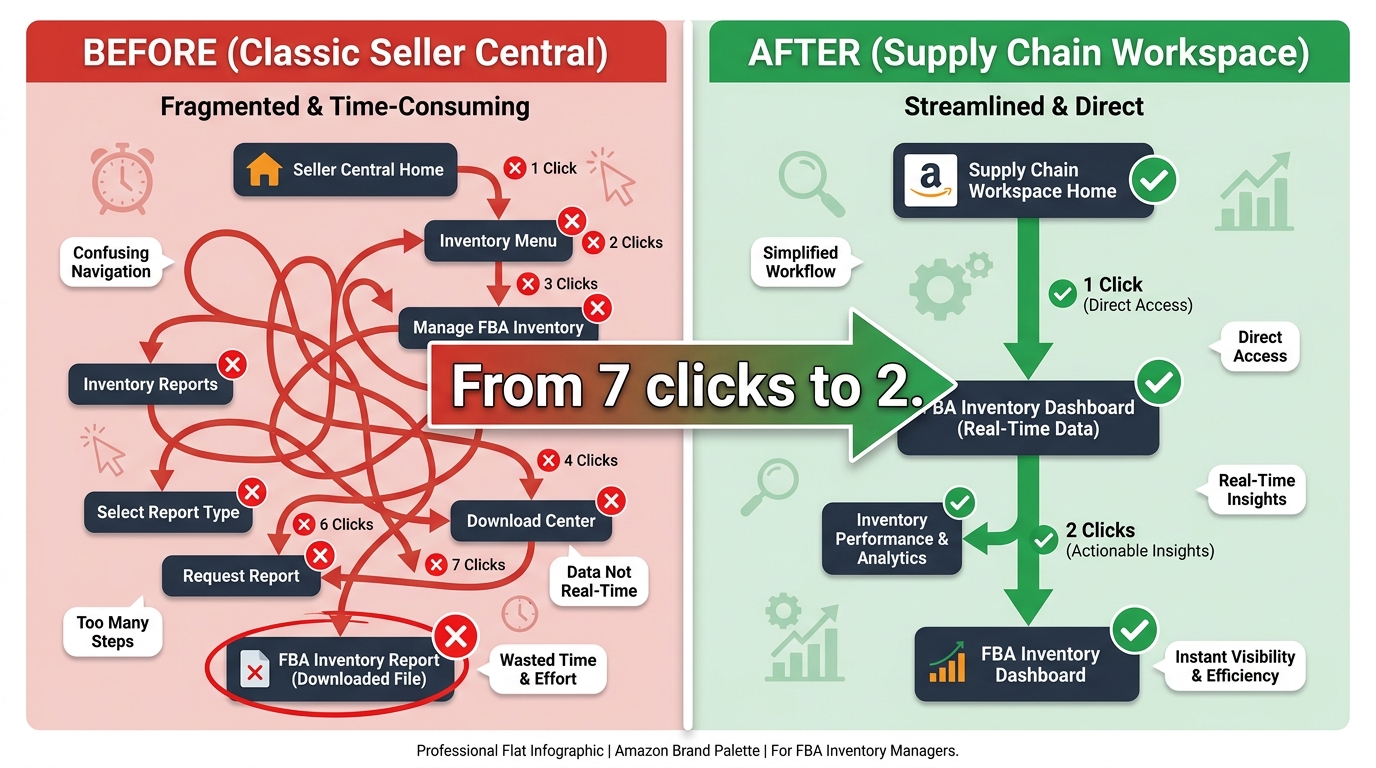
To make the workspace shift concrete, consider a task that virtually every FBA seller performs regularly: checking inventory levels, identifying which ASINs need restocking, and initiating a shipment. Here’s how that workflow compares between the old and new interfaces.
Old Navigation Path (Classic Seller Central)
- Hover over Inventory in the top menu
- Select Manage Inventory from the dropdown
- Filter or sort by available quantity
- Navigate back to Inventory menu
- Select Restock Inventory or Inventory Planning
- Review restock recommendations
- Return to menu, select Send to Amazon
- Initiate shipment workflow
That’s a minimum of five to eight distinct navigation actions, each requiring a menu traversal, to complete a single end-to-end restocking workflow.
New Navigation Path (Supply Chain Workspace)
- Navigate to Supply Chain workspace
- Review inventory status, restock recommendations, and initiate Send to Amazon — all within the same workspace context
The consolidation matters most not because individual clicks are expensive, but because context switching has a cognitive cost. Every time you navigate away from a task and back into a menu, you’re making a micro-decision about where you are and where you need to go. Over dozens of daily navigation actions, that overhead adds up. The workspace model reduces this by keeping related tools in the same context.
SOP Reconstruction: The Transition Framework
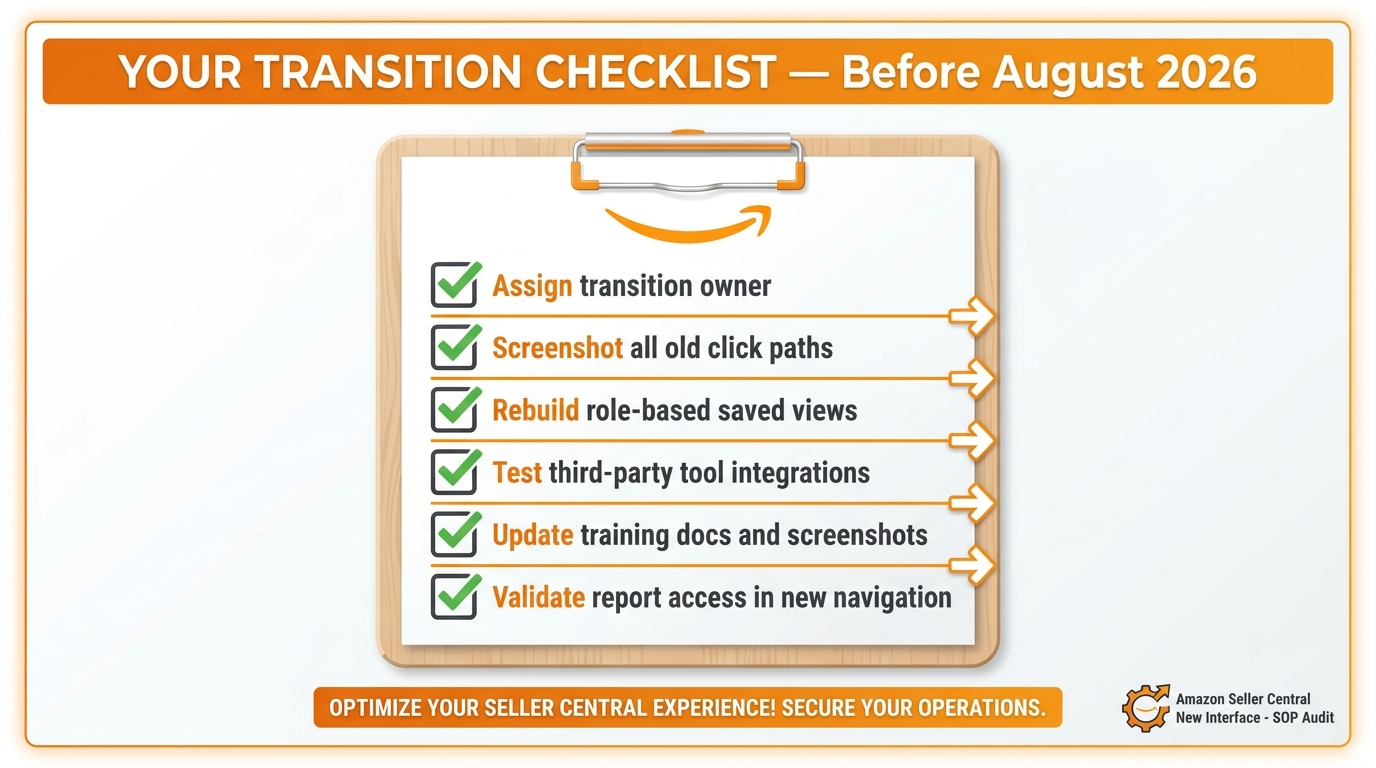
The sellers who will move through the learning tax fastest are those who treat the interface transition as a deliberate project rather than a background inconvenience. Here’s a structured framework for rebuilding your operational foundation in the new Seller Central.
Step 1: Assign a Transition Owner
The first and most important step is designating a single person to own the transition. This doesn’t mean they do all the work — it means they’re accountable for ensuring the transition gets completed systematically rather than haphazardly. In a small operation, this might be the account owner. In a larger team, it’s typically the ops manager or the team lead who works in Seller Central most frequently.
The transition owner’s first responsibility is to complete the full transition themselves before the team does. They spend a week navigating the new interface exclusively, learning where tools live, discovering what’s changed, and developing the new mental model. That firsthand experience becomes the basis for updating team SOPs.
Step 2: Audit Your Existing Click Paths
Pull out every SOP, training doc, and task checklist that references Seller Central navigation. These documents are almost certainly built around old menu paths. For each one, map the old navigation path to its new workspace equivalent. This doesn’t need to be exhaustive on day one — prioritize the highest-frequency tasks first. If your inventory manager checks FBA stock daily, that SOP needs to be updated before lower-frequency tasks like monthly financial reporting.
Create a simple spreadsheet: Column A lists the task, Column B lists the old navigation path, Column C lists the new workspace and path, Column D notes the responsible role. This becomes your transition master document.
Step 3: Rebuild Role-Based Views
One of the more powerful features of the new interface is the ability to create and save custom views within workspaces — essentially building a personalized navigation layer on top of the workspace structure. For teams, this means each role (inventory manager, ads manager, account health monitor) can have a saved view that surfaces the specific pages and data they need most frequently.
Rebuilding role-based views isn’t just a quality-of-life improvement — it’s how you eliminate the daily navigation overhead for team members who access Seller Central for a specific set of recurring tasks. An ads manager who only needs to monitor campaign performance and access Marketing shouldn’t be starting from the same homepage view as an operations manager who needs cross-workspace visibility.
Step 4: Validate Third-Party Tool Connections
If you use third-party software that integrates with Seller Central — inventory management tools, repricing software, analytics platforms, or PPC management tools — verify that those connections are functioning correctly after the interface transition. Amazon explicitly noted that integrations and API connections are not affected by the navigation redesign, but it’s worth a confirmatory check before relying on data from those tools in a time-sensitive context.
Any tool that scrapes the Seller Central interface directly (rather than using the API) may be affected, since the HTML structure of the pages has changed. Contact those vendors directly if you notice data discrepancies.
Step 5: Update Training Materials with Screenshots
Once the transition owner has mapped the new click paths, update all training materials with fresh screenshots from the new interface. This is tedious but non-negotiable for any business that onboards new team members or VAs. The investment in a single SOP update session — perhaps half a day — pays back in avoided confusion every time someone new accesses the account.
Set a reminder to re-validate screenshots quarterly. Amazon has signaled ongoing refinement of the new interface, including feature additions and UI adjustments, so training materials will need periodic maintenance going forward.
Custom Analytics: The Upgrade Hidden Inside the Redesign
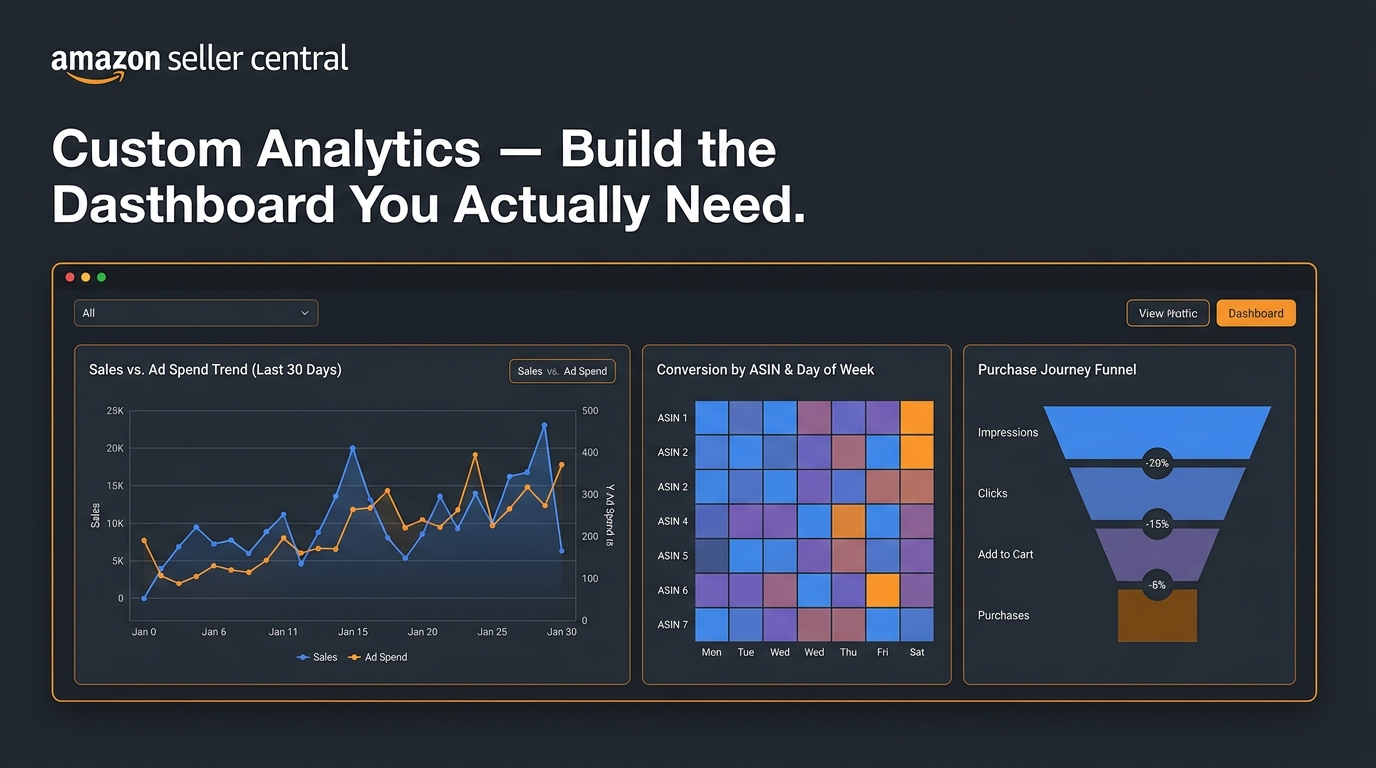
The discussion about Seller Central’s new interface has almost entirely focused on the navigation redesign — workspaces, Action Center, the transition friction. What’s received far less attention is a genuinely significant capability improvement that arrived alongside it: Custom Analytics.
Custom Analytics is Amazon’s drag-and-drop reporting tool inside Seller Central, and it represents a meaningful step beyond the static Business Reports that sellers have relied on for years. If you haven’t explored it yet, this is where to spend your next 30 minutes in the new interface.
What Custom Analytics Actually Does
The core capability is custom dashboard building. Instead of working with pre-built report templates that show fixed metrics in fixed formats, Custom Analytics lets you select the metrics you care about, arrange them in a layout that matches how you think about your business, and save that view for repeated use.
The visualization options go well beyond the bar charts and line graphs available in classic Business Reports. Custom Analytics supports:
- Multi-axis trend charts — useful for overlaying sales performance against ad spend or sessions against conversion rate on the same timeline
- Heat maps — particularly valuable for identifying patterns by ASIN and day of week, or by marketplace and time period
- Funnel diagrams — for analyzing the purchase journey from impressions through conversion
- Column charts with custom time comparisons — making period-over-period analysis faster than exporting to a spreadsheet
How to Use It for Business Decisions (Not Just Reporting)
The most common use case sellers fall into with new reporting tools is replicating what they already do — taking the same reports they ran in the old system and rebuilding them in the new format. That’s a reasonable starting point, but it misses the actual upgrade here.
Custom Analytics enables the kind of correlation analysis that used to require exporting multiple reports and joining them in a spreadsheet. You can overlay advertising spend by ASIN against organic session data to understand whether paid traffic is cannibalizing organic rank or complementing it. You can build a heat map of conversion rate by product across days of the week to identify pricing or promotional opportunities. You can create a funnel view that shows where in the purchase journey specific ASINs are losing customers.
These analyses were technically possible before, but the friction of exporting, joining, and visualizing multiple data sources meant most sellers didn’t run them regularly. Custom Analytics reduces that friction enough that it becomes practical as a weekly habit rather than a quarterly deep-dive.
Multi-Store KPI Management
For sellers managing multiple stores or marketplaces, the new KPI dashboard in the My Business workspace adds a capability that was genuinely absent from Classic Seller Central: consolidated cross-store performance in a single view. You can see aggregate sales, conversion, and ad spend across stores, then filter by individual store, time period, or currency to isolate specific marketplace data.
This is particularly valuable for international sellers who previously had to log into separate accounts or use third-party aggregation tools to get a unified view of their Amazon business. The new interface doesn’t replace dedicated analytics platforms for sophisticated multi-store operations, but it removes the daily friction of account-switching for routine performance checks.
Role-Based Workflows: Building the Interface for Your Team
One of the highest-leverage applications of the new Seller Central’s customization features is building role-specific workflows for your team. Rather than having every user navigate the same default interface, the new system supports a degree of personalization that lets each role operate from a starting point optimized for their specific responsibilities.
The Inventory Manager’s Setup
An inventory manager’s daily Seller Central session should center almost entirely on the Supply Chain workspace. Their ideal setup starts with a saved view in Supply Chain that surfaces current inventory levels, restock recommendations, and active FBA shipment status at a glance. Secondary tasks — resolving listing issues flagged by the Action Center that relate to inventory, reviewing storage utilization data — can be accessed from within the workspace without leaving the context.
For this role, the Action Center serves as the exception handler: it’s where inventory-related alerts (low stock warnings, stranded inventory notifications, shipment discrepancies) will surface and route back to Supply Chain for resolution. The daily workflow is: Action Center → Supply Chain → any exception-based tasks generated by alerts.
The Ads Manager’s Setup
An ads-focused user will spend most of their time in Marketing for launch and top-level campaign management, and in Advertising Console (accessed through Marketing) for campaign-level optimization. For this role, the most useful homepage customization is a KPI widget set that surfaces ad spend, impressions, and ACOS daily without requiring navigation — so they can see at a glance whether today requires active intervention in campaign performance before opening the Advertising Console.
The Action Center for an ads manager is mostly informational — policy notices that affect advertising eligibility, listing suppressions that would pause campaigns, account health flags that could affect ad serving. These are high-priority interruptions when they occur and should be addressed before returning to campaign management.
The Account Health Monitor’s Setup
For operations that assign someone to monitor account health specifically — common in larger seller operations where account suspension risk carries significant business consequences — the Action Center is essentially their primary workspace. Their role is to triage Action Center items daily, escalate policy notices for review, and ensure that listing issues, compliance requirements, and performance alerts are resolved within their stated deadlines.
This role benefits most from understanding the urgency hierarchy of Action Center items and having clear escalation protocols for items that require decisions above their authorization level. Building a response matrix — what to resolve immediately, what to escalate, what to flag for weekly review — turns this role from reactive firefighting into structured risk management.
The August 2026 Deadline: What to Do Before the Window Closes
Amazon is completing the rollout of the new Seller Central as the default experience in phased waves through August 2026. For sellers who still have access to Classic Seller Central, the ability to revert is temporary and being removed progressively. Some accounts lost the revert option in June; others will lose it by late August.
The deadline matters because transition work done under time pressure is transition work done poorly. If you’re still using Classic Seller Central and planning to “deal with it when you have to,” you’re running out of runway to do this properly. Here’s a concrete timeline for the remaining weeks.
Weeks 1-2: Exposure and Orientation
If you haven’t already, switch to the new interface voluntarily and spend two full weeks using it exclusively. Don’t toggle back to Classic when something feels unfamiliar — that’s exactly the reflex that extends the learning tax. Use the search bar when you can’t find something. The goal of this phase is passive orientation: building familiarity with where things live without the pressure of time-sensitive tasks.
Weeks 3-4: SOP Audit and Documentation
Run the SOP audit process described earlier. Identify every documented process that references Seller Central navigation, prioritize by frequency, and update click paths to the new workspace equivalents. Complete this before making the new interface the default for your full team.
Week 5: Team Transition
Transition your team with updated SOPs in hand. Run a short orientation session (30-45 minutes is sufficient for most teams) that covers the workspace model, the Action Center habit, role-specific starting points, and who to ask when something is hard to find. Set expectations that the first two weeks will feel slower — that’s normal and temporary.
Week 6+: Monitor and Refine
After the team is on the new interface, schedule a debrief at the two-week mark. Ask specifically: which tasks still feel slower than before? Which new features are you not using? Where are you still getting confused? Use that feedback to refine saved views, update any remaining SOP gaps, and identify any team members who need additional orientation.
Key principle: The sellers who will come out of this transition ahead are not the ones who adapted fastest individually — they’re the ones who rebuilt their team systems fastest. Individual learning happens naturally. System-level adaptation requires deliberate effort.
What to Stop Doing in the New Interface
Productivity in any new system isn’t just about learning the new workflows — it’s also about identifying the old habits that no longer make sense. Here are several behaviors that were rational in Classic Seller Central but create unnecessary friction in the new interface.
Stop Browsing Menus When You Know What You Need
In the old Seller Central, menus were the primary navigation method. In the new interface, the global search bar is faster for any page you can name. If you find yourself clicking through workspace tabs looking for a specific tool, search for it instead. Two keystrokes and a click will almost always beat three tabs and a dropdown.
Stop Checking Account Health as an Afterthought
In the old interface, Account Health was a separate navigation destination that many sellers checked reactively — when something seemed wrong, or on a weekly schedule. In the new interface, Account Health flags surface proactively in the Action Center. If you’re not checking the Action Center daily, you’re still in a reactive posture when the interface has been explicitly designed to make you proactive.
Stop Treating the Homepage as Just a Loading Screen
The new Seller Central homepage is genuinely more information-dense than the old one. KPI cards for sales, conversion, and ad spend are visible at a glance. Multi-store performance is summarized in one place. The homepage was designed to be a functional check-in point — not just a page you click through to get to where you’re actually going. Take 90 seconds with the homepage before navigating to your first workspace task.
Stop Exporting Everything to Spreadsheets for Visualization
If your current reporting workflow involves exporting Business Reports to Excel or Google Sheets primarily for visualization purposes, explore Custom Analytics before your next reporting cycle. For many common analyses — period-over-period sales comparisons, multi-metric trend visualization, ASIN-level performance patterns — Custom Analytics now handles what used to require export-and-chart workflows. This isn’t true for every use case (complex profitability modeling still lives in spreadsheets), but it may be true for more of your reporting than you expect.
The Transition Is an Opportunity, Not Just an Interruption
Every major interface change carries the same dual nature: it’s a disruption for current users and an equalization event for the competitive landscape. The sellers who treat this transition as an operational project — who rebuild their workflows deliberately, train their teams systematically, and explore genuinely new capabilities like Custom Analytics — will come out of it with faster, more organized operations than they had before.
The sellers who resist the transition, toggle back to Classic Seller Central whenever possible, and postpone SOP updates until the deadline forces their hand will pay the maximum learning tax: all the disruption with none of the operational upside.
Amazon’s new Seller Central is not a dramatic reimagining of how Amazon commerce works. The core business activities are identical. What’s changed is the interface layer — the daily operational experience of managing your account. And interface-layer changes reward the sellers who adapt their systems, not just their habits.
The clock on Classic Seller Central is running down. The work of adapting is the same whether you do it now or in August under deadline pressure. Starting now just means you get to do it carefully.
Key Takeaways
- Workspaces replaced menus — your data didn’t move, only the navigation did. Core listings, inventory, orders, and integrations are unchanged.
- Make the Action Center your daily starting point. It was explicitly designed to surface time-sensitive issues before they become account-level problems.
- The global search bar is the fastest navigation path for any tool you can name — build this reflex before anything else.
- Supply Chain consolidates FBA workflows that were previously scattered across multiple menu paths — use it as your operational hub for inventory management.
- Custom Analytics is a genuine capability upgrade that most sellers haven’t explored yet — heat maps, multi-axis trend charts, and funnel analysis are now native to Seller Central.
- SOP debt is your biggest operational risk from this transition. Audit and update documentation before it silently degrades your team’s performance.
- Assign a transition owner. Team-level adaptation requires ownership — it doesn’t happen by accident.
- The August 2026 deadline is real. Sellers still on Classic should be in active transition mode now, not waiting for the forced switch.